API access
If you want to allow access to your Site via API (for an application), then you will need to create an API account to get an access key.
Under Site Access, go to API Access tab. It should look similar to the below:
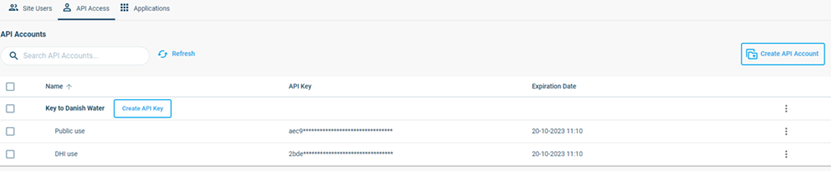
Now there’s two levels: Accounts and Keys. An example of multiple Accounts is for example if you have two applications that you want to grant access. One Account would then be Application 1 (with one or more Keys) and one would be Application 2 (with one or more Keys). If you have an application that can read with some functionality and write with other functionality and it has to be ensured those things can’t cross, then you can add two keys to an account to ensure one has Reader rights and the other has Contributor rights.
Note: an API key is like a username and password so they should never be given out to untrustworthy partners – it is also required for external users of the key to sign an agreement to use the MIKE Cloud as regular users are. The person creating these keys needs to ensure this happens before handing out the key.
Click the Create API Account button on the right: 
Give the Account a name and click Create API Account.
A new line gets added in the table of API Accounts. At this point there is no key yet.
Click Create API Key behind the new Account.
Give the key a name and click Create API Key. It will be valid for a year from creation.
A pop-up will appear with the actual key:
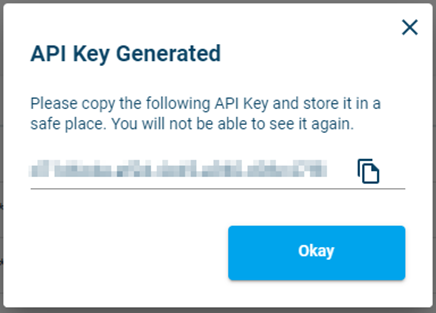
Use the  button to copy the key.
Note: you will not be able to retrieve the number from the interface again – if you lose it you will have to generate a new key.
Press Okay to close the pop-up. You can now use the API key in folders to grant access to those folders as you would users.
Removing API Access
If an API key should be invalidated, it can be removed from the list by clicking  behind the name, then clicking the Delete option. This will instantly revoke any access the key granted previously, meaning any access granted will be revoked.