Adding comments
Adding comments
Comments can be used to communicate to colleagues working on the same project, to point out improvements or as reminders to yourself.
The comments panel can be found on the right side of the screen after clicking the  .
.
It initially gives an overview of the comments that are currently in this Workspace (may be empty if no other comments exist).
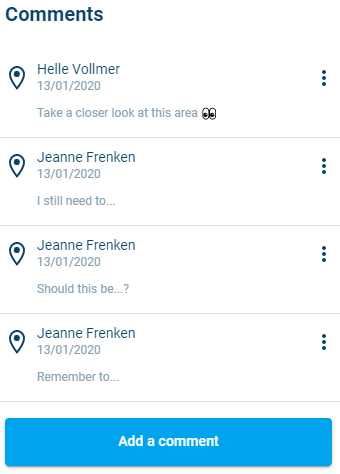
Figure 3‑16 Comments panel
To add a comment, click the button  at the bottom or click on the
  tool in the left toolbar and then click on a point on the map.
A dot is projected where the comment marker will appear and the panel to the right changes so you can enter the desired text. If the placement is wrong, simply click again to place the comment marker elsewhere.
Click on the Comment line to the right to type in your comment.
It is possible to use the standard Windows emotes here, by pressing Windows key ( on your keyboard) and the dot at the same time. A pop-up will appear, where you can add the desired emoticon by clicking on it.
At the bottom of this pop-up are categories with emoticons, and you can type a search term at the top.
Click anywhere next to the pop-up to close it again.
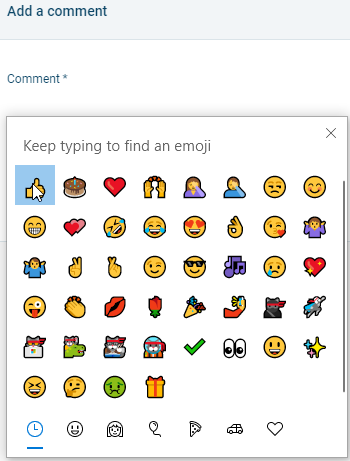
Figure 3‑17 Emoji pop-up
Once the comment is as desired, click  .
.
A comment marker is added, and the comment is added to the list of comments.
All users able to see the Workspace will now be able to see the comment.
In order to delete a comment, click the menu behind it ( and then click
  .
.
The comment will be deleted.