Variables
Variables
The data category, “Variables”, refers to scatter data and raster data.
Creating variables
Raster data can only be copied from Cloud Admin, and can’t be edited after copying to the Mesh Builder.
Scatter data can be copied from Cloud Admin or created in the Mesh Builder. To create a scatter data variable, click on the tool in the left bar: _ . This will open the Draw. Variable pane on the right-hand side of the application.
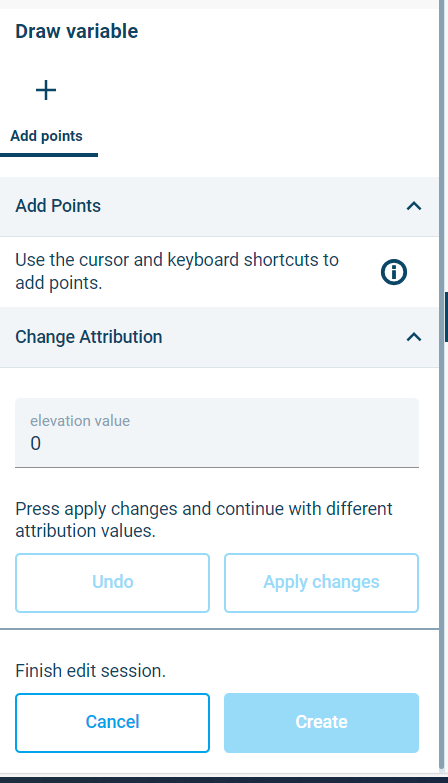
Figure 3‑13 Draw variable pane
Scatter points can then be added to the map by clicking. Points can also be assigned an elevation in the Elevation field under Change Attribution. To assign an elevation value to one or more scatter points, click on Apply Changes. Once all points have been created, click the Create button to create the new Variable data set.
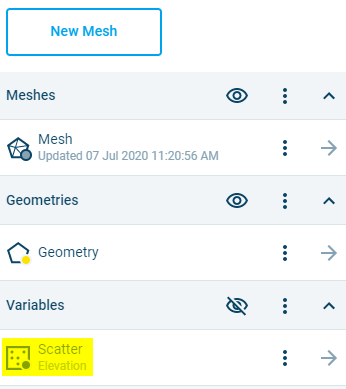
Figure 3‑14 Newly added Variable drawn with the Draw Variable tool
Clicking the Cancel button will cancel the tool and you will be able to use your mouse for navigation again. No variables will be added.
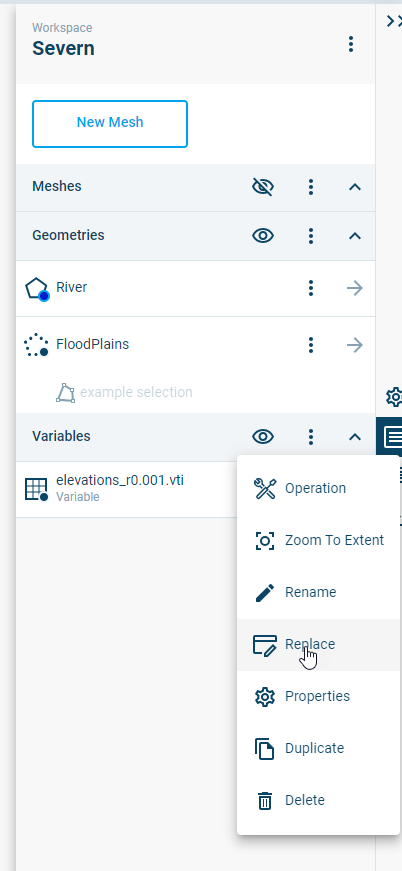
It is possible to rename a variable after creating it, by clicking the menu item  behind its name from the main Workspace page and clicking
  .
.
Click on the name and change it. Click  once you are done. The item will be renamed.
Editing scatter data
It is possible to edit scatter data in existing variables by selecting the menu item  . This opens the Variable editing pane. The pane includes four tabs.
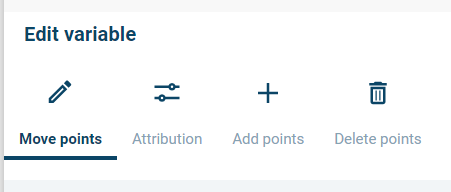
Figure 3‑15 Variable editing pane: Move points, Attribution, Add points, Delete points
- Move points: On the Move points tab, it’s possible to move scatter data points. To begin, one or more points must be selected. Points can be moved by clicking and dragging.
- Attribution: The Attribution tab enables editing of elevation values. To change elevation values, select one or more points, enter a new elevation value, and click the Apply Changes button.
- Add points: Points can be added in the Add points tab. An elevation field enables assignment of elevation values.
Delete points: Points can be deleted by selecting points and then clicking the Apply Changes button.
If you would like to save edits during a session, click the “Apply changes” button. Previously applied changes can be undone by clicking on the “Undo” button. Once you are done editing, click on the “Submit” button to finalize the changes.
Replacing a variable
A variable can be replaced with another variable from Cloud Admin without changing the name or other properties of the variable. In this way, variables can be ‘updated’ from outside the Mesh Builder. To replace a variable, click on the three-dot icon to the right of the variable name and select “Replace”.