Selecting data
After the .mesh file has been uploaded and the data extraction settings have been chosen, find the Data selection panel by clicking the third symbol from the top on the right:  . A new panel is opened:
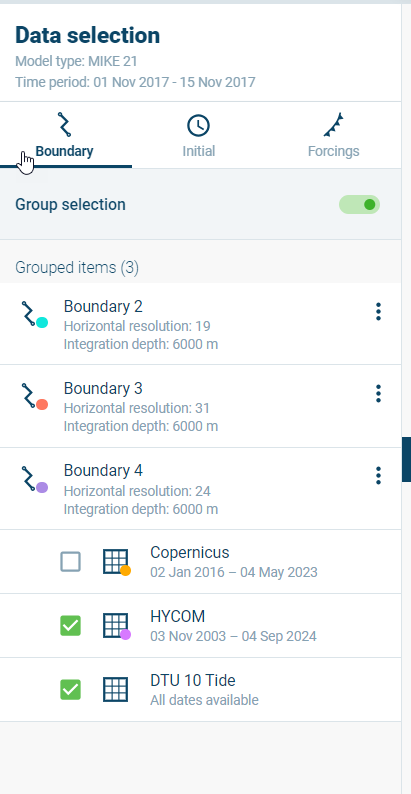
This panel consists of three tabs: Boundary (opened per default), Initial and Forcings, which will specify the data sources used during extraction for model boundaries, initial conditions, and model forcings data.
The panels are described in further detail below. Click on the tab to open the one you want to view.
Boundary tab
The ‘Boundary’ tab enables selection of data providers for all model boundaries as defined in the selected mesh-file. Boundary codes from the mesh-file are used in the naming of the list of boundaries (‘Boundary 2’, ‘Boundary 5’, etc.).
Boundaries are visually shown in the map view with different coloured lines, and the equivalent colours are presented in front of specific boundaries in the list of boundaries in this page.

Boundary 2 is represented by a light blue dot and a light blue line on the map
Note: boundary lines on the map view will be highlighted when hovering over the item with the mouse cursor in the panel.
The following features are available: - Group selection: if turned ‘on’ (item is green), selections made in the tickboxes below will be counted for all boundaries (no individual choices are made) - Boundary menu (click ): this shows the fields Horizontal and Integration depth, that can then be edited and saved by Confirm values. They will be displayed on the Boundary item. - Tickbox for a dataset: boundaries will use the selected dataset(s).
Initial tab
The ‘Initial’ tab gives access to several predefined initial condition data items that can be extracted from the chosen datasets:
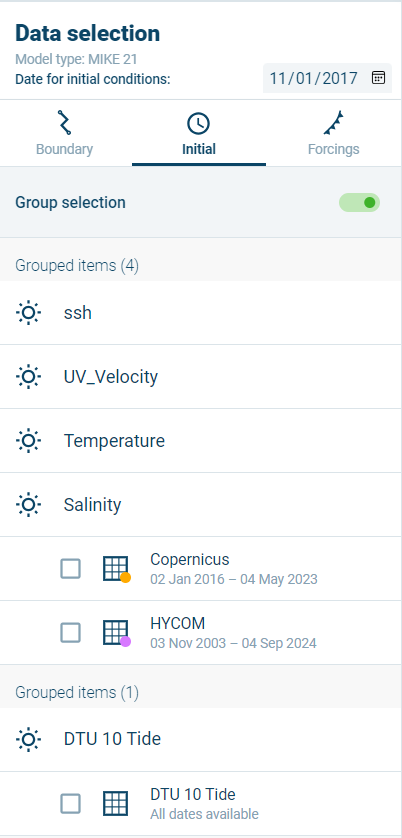
- Group selection: if turned ‘on’ (item is green), selections made in the tick-boxes below will be counted for all conditions (no individual choices are made); if individual items should be used from different data sets, turn this option off.
The following data items can be extracted: - ssh: (sea surface height, or water level). - UV_Velocity - Temperature - Salinity - DTU 10 Tide
Tick the box in front of the dataset you want to use for extraction of the data.
Forcings tab
The ‘Forcings’ tab gives access to meteorological data items for model forcings.
- Group selection: if turned ‘on’ (item is green), selections made in the tickboxes below will be counted for all conditions (no individual choices are made); if individual items should be used from different data sets, turn this option off.
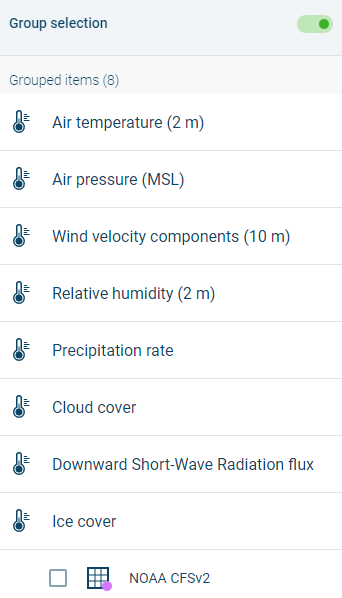
Tick the box in front of the dataset you want to use for extraction of the data.