Using Mesh import
The first step in using DL is to click this icon on the right side of the screen: 
This will show the panel Import mesh, which gives you three options:
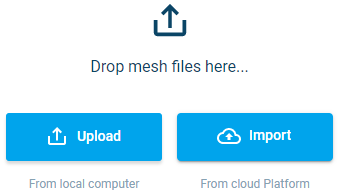
If you drop a mesh file in the top, it will upload the file and go to the processing step (see below).
If you click the Upload button, it will show you a dialog for your local computer, and you can browse to the desired file and select it from there. It will then upload the file and go to the processing step (see below).
If you click the Import button, it will open a dialog for the Data Admin functionality in the Cloud, and you can select any .mesh file present in the Project you are currently in. If no files are available, you can choose to upload it in Data Admin, or through the two options mentioned before. It will then take this file and go to the processing step.
Mesh import processing
Once the mesh file is selected for upload, notifications will be displayed under the bell icon at the top of the screen: 
This will show the progress of the mesh file being processed:

Once each step is done it will give a message in the main window:

Once all the steps are done the mesh will be displayed on the map and you can move on to the Data extraction settings.