Site Management
Under the name of the Site (Denmark Waters in our example), you can find a site manager called Manage Sites.
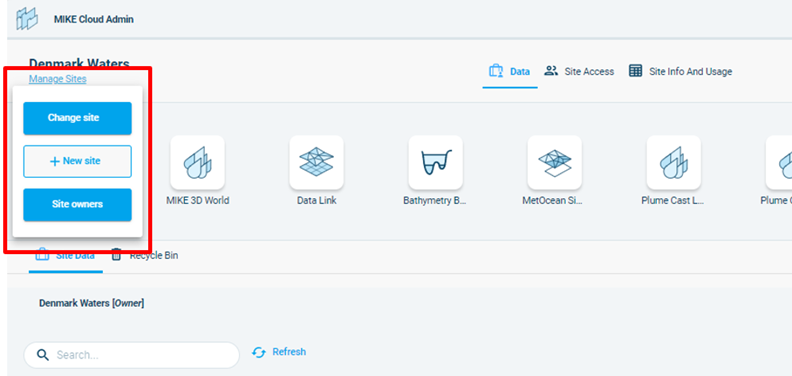
By clicking on it a menu will appear where based on their privileges users can find the following options:
-
Change site: in case a user is a member of two or more sites this button allows them to switch among their sites by returning to the site menu.
-
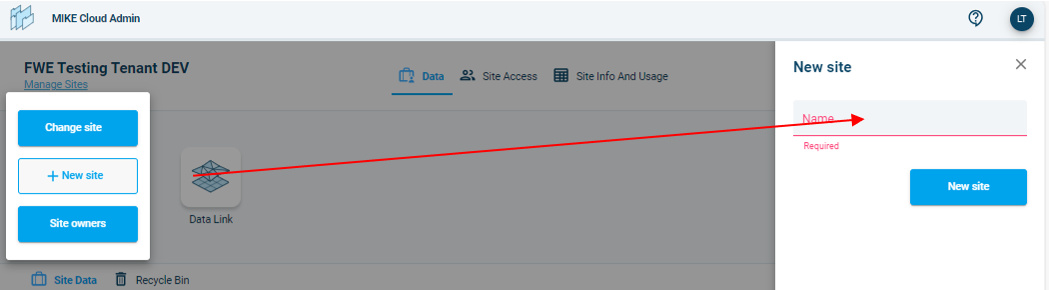
+New site : this allows users to add a completely new site to their Cloud Admin. This option is available:
- For internal sites, to all of their users under @dhigroup.com domain (i.e. DHI employees). After clicking on the button, they will be redirected to the DHI Wiki pages with instructions on how to order a new internal site for their project, product, or team on Sharepoint’s self-service zone.
- For external sites, to the users with the “MIKE Cloud Administrator” role. To learn more about the MIKE Cloud Administrator role and to set it up, if needed, please contact our support line at mike@dhigroup.com. By clicking on the button, MIKE Cloud Administrators can create a new external site directly in Cloud Admin. IMPORTANT: Adding new sites may have an impact on your invoicing, so it is recommended to decide carefully who and how many people in your organization can be assigned the MIKE Cloud Administrator role. For invoicing and billing purposes, the new site will be based on the same billing reference ID (Account ID) as the original one.
- Site owners: by clicking this button, all site users can see a list of active Owners for the site they are currently in including their email addresses in case they need to contact (one of) them.